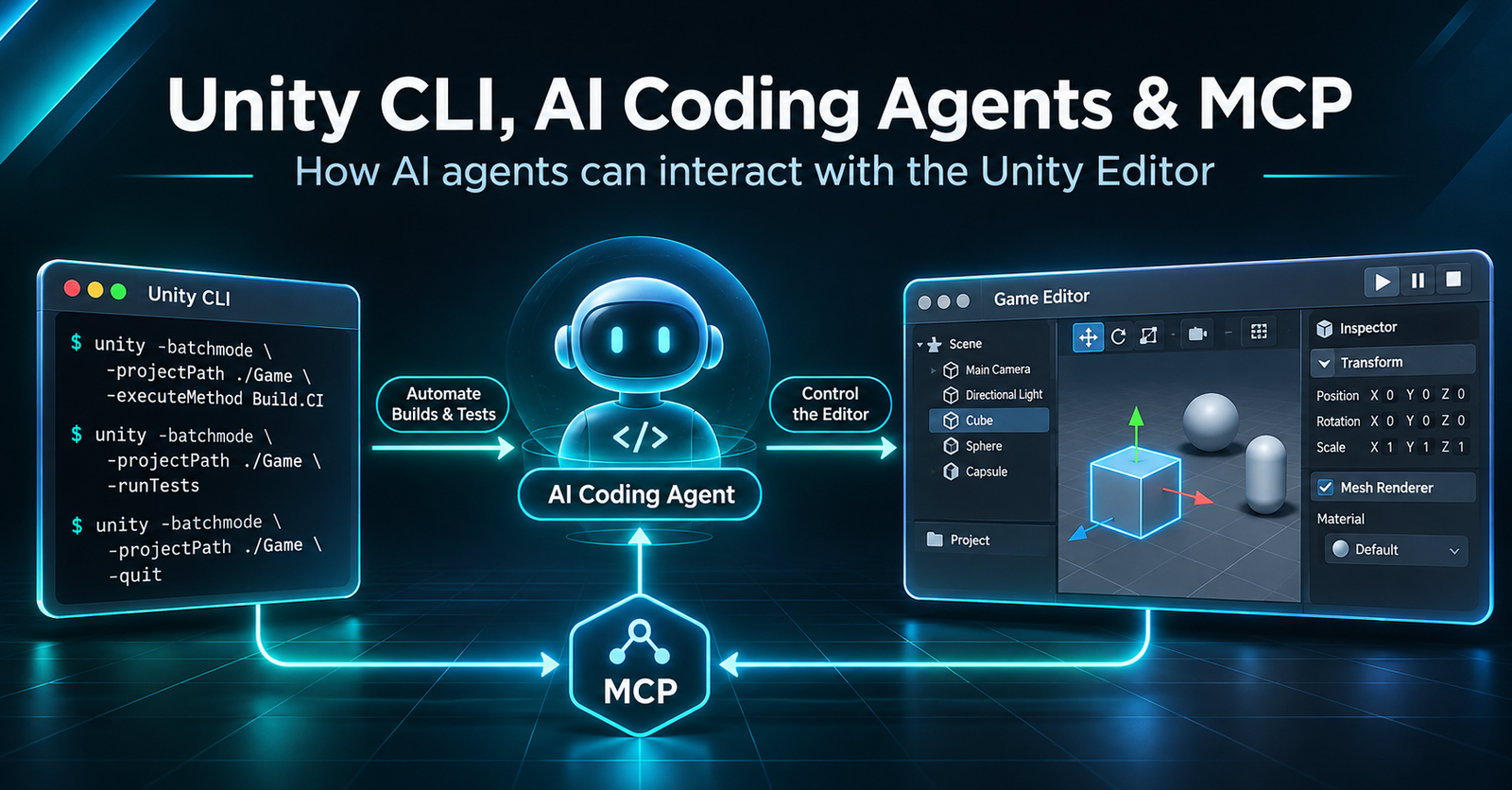
How Unity CLI and MCP allow AI agents to interact directly with the Unity Editor.
In October 2026, Unity published some interesting statistics about its new Command Line Interface (CLI). Since its introduction in July, it had recorded more than 200 million events from over 226,000 signed-in users.
But the most surprising number was that approximately 98% of CLI runs came from coding agents and other automation, rather than humans typing commands manually.
This doesn’t mean 98% of Unity developers use AI. However, it highlights an interesting shift in how developers interact with game engines.
What is Unity CLI?
Traditionally, Unity developers interact with the engine through its graphical Editor to manage GameObjects, scenes, components, builds, and tests.
Unity CLI introduces another way of doing this: through terminal commands.
It allows developers and external tools to:
- Manage Unity installations and projects.
- Inspect scenes and GameObjects.
- Execute Editor commands and C# code.
- Run builds and automated tests.
- Interact with a running Unity Editor.
For example, the following command executes C# directly inside the Editor:
unity command eval --code 'Debug.Log("Hello from Unity CLI");'These capabilities become particularly interesting when combined with AI coding agents such as Claude Code, Codex, or Cursor.
From Code Generation to Autonomous Debugging
AI coding assistants have become good at writing and modifying code. However, generating a valid C# script doesn’t guarantee that a game works correctly.
For example, imagine a player occasionally falling through the floor.
A coding agent with Unity CLI access could potentially inspect the scene, examine Rigidbody and Collider configurations, modify the relevant components, enter Play mode, and run tests to verify its changes.
Instead of simply generating code, the agent could follow a development loop:
Observe → Modify → Execute → Verify → Repeat
The key difference is that the AI can interact with the actual engine, rather than relying entirely on source code.
Where Does MCP Fit In?
Unity CLI also supports MCP (Model Context Protocol).
MCP is an open protocol that standardizes how AI applications connect to external tools and data sources.
An MCP server exposes capabilities that AI agents can discover and invoke. For example, a Unity MCP server could provide tools for inspecting scenes, modifying GameObjects, or executing commands.
Unity CLI supports two ways of connecting AI agents:
1. Direct CLI execution
An agent with terminal access can execute Unity CLI commands directly.
AI Agent
   |
   v
Unity CLI
   |
   v
Unity Pipeline (HTTP API)
   |
   v
Unity Editor
2. MCP integration
Unity CLI includes a built-in MCP server, allowing compatible AI clients to access Unity through standardized tool calls.
AI Agent
   |
   v
MCP Client
   |
   v
Unity CLI MCP Server
   |
   v
Unity Pipeline
   |
   v
Unity Editor
For example, developers can configure Unity CLI for Claude Code using:
unity mcp configure claude-codeMCP is optional. Unity generally recommends direct CLI execution for agents that already have terminal access, while MCP is useful for clients that benefit from structured tool discovery.
What Does This Mean for Game Development?
The interesting part of Unity CLI isn’t simply controlling the Editor from a terminal. It’s the possibility of giving AI agents access to the actual development environment.
Game development involves much more than writing code. Developers need to configure scenes, investigate runtime behavior, test gameplay systems, and verify that everything works together.
Unity CLI opens the door to automating parts of this process.
Of course, agents still have limitations. Successfully executing commands doesn’t guarantee correct gameplay, good performance, or maintainable architecture. Human supervision and reliable testing remain essential.
But this could represent an important evolution in AI-assisted game development.
The next step for AI coding agents may not be writing more code, but actually running, testing, and understanding what their code does.
Leave a Reply